The Problem: 10DLC Killed Easy SMS
Sending SMS through an API used to be simple. Twillio used to let you grab a number and start texting in minutes, great for alerts, home automation, or quick-and-dirty remote control of a project.
Then came 10DLC (10-Digit Long Code) registration, a campaign by carriers to crack down on spam. The intent is reasonable, but the result is an onerous approval process involving brand registration, campaign vetting, and ongoing compliance, all designed for businesses sending marketing messages at scale.
I tried to do it the “right” way: I submitted a 10DLC application through my LLC, created fully functional mockups of registration pages and opt-in disclaimers. After nearly two months of back and forth, I gave up. If you’re a hobbyist who just wants to text yourself from your custom app, this is a massive barrier to entry.
SMS remains the lowest common denominator for mobile communication. It works on every phone, requires no app installs, and is great for pushing alerts while allowing simple remote commands and queries.
The Approach
Instead of going through an SMS API provider, we skip it entirely and connect a cellular modem directly to a computer (a Mac, a Raspberry Pi, or any Unix-based system) and send/receive texts over AT commands.
If you’re cost-sensitive, you may be able to do this for under $100 with a used Pixel phone and Android access. But here’s an approach using all new components for a little bit more.
Bill of Materials
| Component | Notes | Est. Cost | Source |
|---|---|---|---|
| Quectel EG25-G module (Mini PCIe) | LTE Cat 4 modem. Get the EG25-G variant specifically for broad band coverage. Buy from DigiKey or other trusted distributor. Some Amazon units can’t read SIM cards. | ~$79 | DigiKey |
| Mini PCIe to USB carrier board | Adapter to connect the module to any computer via USB. | ~$18 | Amazon |
| Powered USB hub | Needed to supply adequate current to the modem. | ~$15 | Amazon |
| LTE antennas (×2) with u.FL connectors | Main + diversity antennas. Make sure they have u.FL (also called IPEX MHF1) connectors to match the EG25-G. | ~$9 | Amazon |
| Tello SIM card | T-Mobile MVNO. SIM ships for about $3. | ~$3 | Tello |
| Total (one-time hardware) | ~$124 | ||
| Tello service plan (monthly) | “Build Your Own” plan: select 2 GB data, no minutes. Unlimited texts included. | $6/mo | Tello |
EG25-G
The Quectel EG25-G is the same modem used in the PinePhone, which means there’s a healthy body of open-source documentation and community knowledge around it. It supports LTE bands 2, 4, and 12, the key T-Mobile LTE bands:
- Band 2 (1900 MHz): T-Mobile’s primary rural band
- Band 4 (AWS 1700/2100 MHz): core mid-band capacity
- Band 12 (700 MHz): low-band for range and building penetration
The EG25-G does not support Bands 66 or 71, so you may see reduced coverage in very rural areas or deep indoors compared to a modern smartphone. For a stationary modem sitting near a window with external antennas, this is less of an issue.
Tello
Tello is a T-Mobile MVNO with a no-contract “Build Your Own” plan starting at $6/month that includes unlimited texting. No activation fees.
Setup
1. Order Components
Source the EG25-G module from DigiKey.
2. Order and Activate the Tello SIM
Go to tello.com and order a SIM card. The plan is the “Build Your Own” plan at $6/month. Select “2 GB data” and “no minutes” under Plans. Unlimited texting is included by default on all Tello plans as of 2026.
When the SIM arrives, follow Tello’s activation instructions. You’ll get a phone number assigned during activation. Save it, this is your modem’s number.
3. Assemble the Hardware
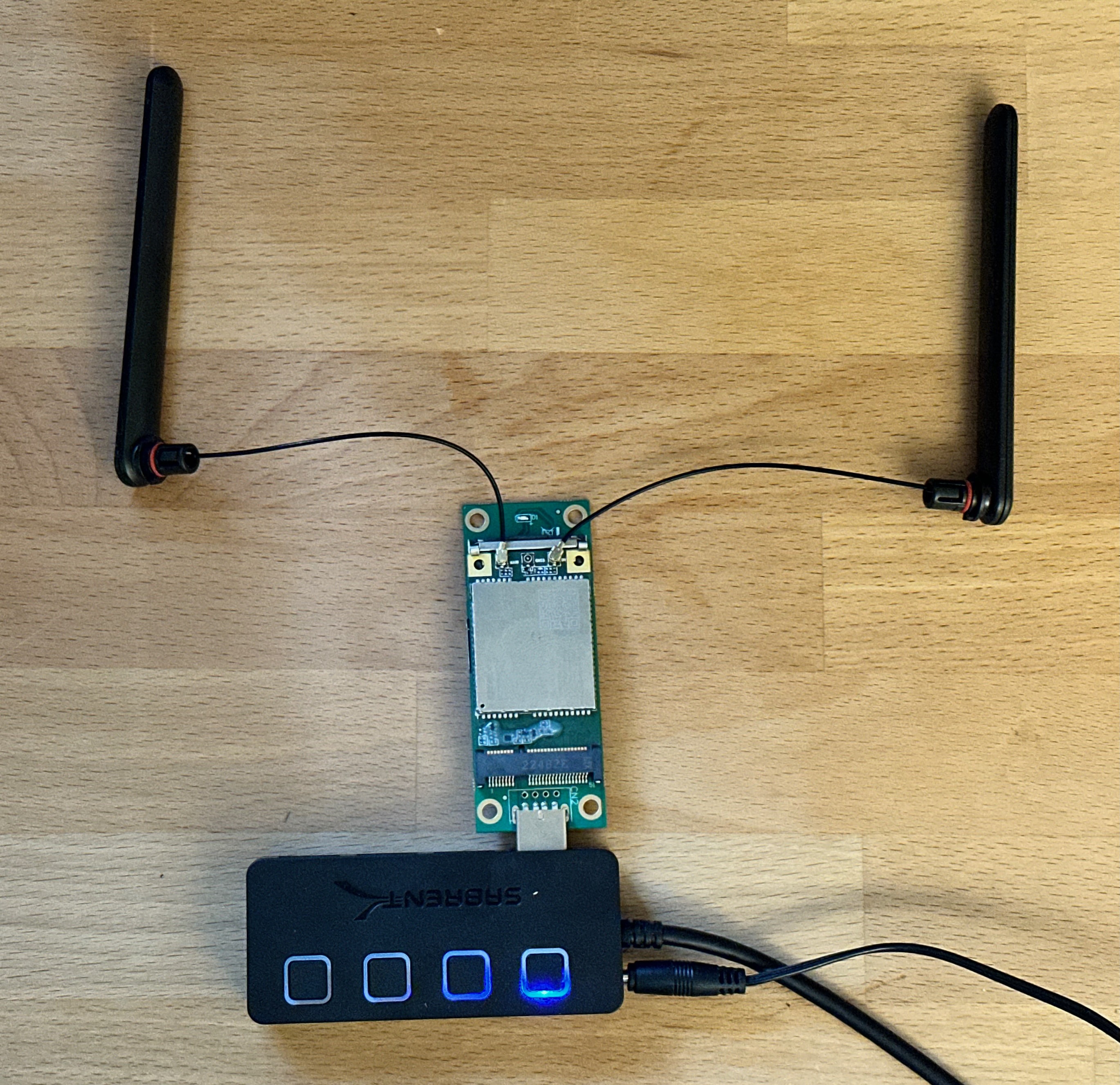
- Seat the EG25-G Mini PCIe module into the USB carrier board.
- Connect the two u.FL antenna leads. There are three very small RF connectors on the end of the EG25-G module: the left and right are for cellular (main and diversity), and the center is for GPS. The antenna connector should push straight on with a small snap, and stay on.
- Punch out the Tello SIM card to the right size for your carrier board’s SIM slot (usually micro or nano SIM).
- Insert the SIM card into the USB carrier board’s SIM slot. It should only go in one way.
- Plug the carrier board into the powered USB hub via USB.
- Connect the powered USB hub to your Mac, Raspberry Pi, or other host.
4. Verify the Connection
On your host machine, verify the modem enumerates as a USB device:
# Linux / Raspberry Pi
lsusb | grep -i quectel

# macOS
ioreg -p IOUSB -l | grep EG25
The EG25-G should appear as a Quectel device.
5. Clone the Demo Repo and Test
git clone https://github.com/payne92/EG25.git
cd EG25
pip install -r requirements.txt
python send_sms.py --to "+15551234567" --message "Hello from the modem"
The library supports two transports: serial (/dev/ttyUSB* on Linux) and direct USB bulk transfers via pyusb for macOS and other platforms where the Quectel interfaces don’t get a /dev/ttyUSB* device node. It auto-detects which to use based on what’s available.
At this point, you should have the building blocks to wire this up to your own application.
Resources
- PinePhone Modem Documentation: AT command reference, firmware info, and modem behavior docs for the EG25-G (since the PinePhone uses the same module)
- Pine64 Wiki: PinePhone
- Quectel EG25-G AT Commands Manual (PDF)
- Quectel EG25-G Product Page
- Tello Wireless: Build Your Own Plan
- 10DLC Overview: if you want to understand the registration process you’re avoiding